A walkthrough of the BOH Wiz prep-list-to-printer flow, with screenshots from the actual iOS app. Tap an item, the label prints from your Zebra in about three seconds. No second app, no re-typing, no copy-paste.
Published May 2, 2026 · By Jose Salazar · About the author
Most kitchen-tech products that promise "label printing" actually mean: open a separate label-design app, type the item name, type the date, hit print. That's three apps, eight taps, and a Sharpie nearby for when the printer wakes up grumpy.
BOH Wiz works differently. The prep list and the printer are the same product. Here's the flow.
Before anything prints, BOH Wiz needs to know which Zebra to talk to. The pairing screen scans for direct-thermal Zebra printers in Bluetooth range and lists them by serial number. Tap one, you're paired. Takes about thirty seconds the first time, never again.
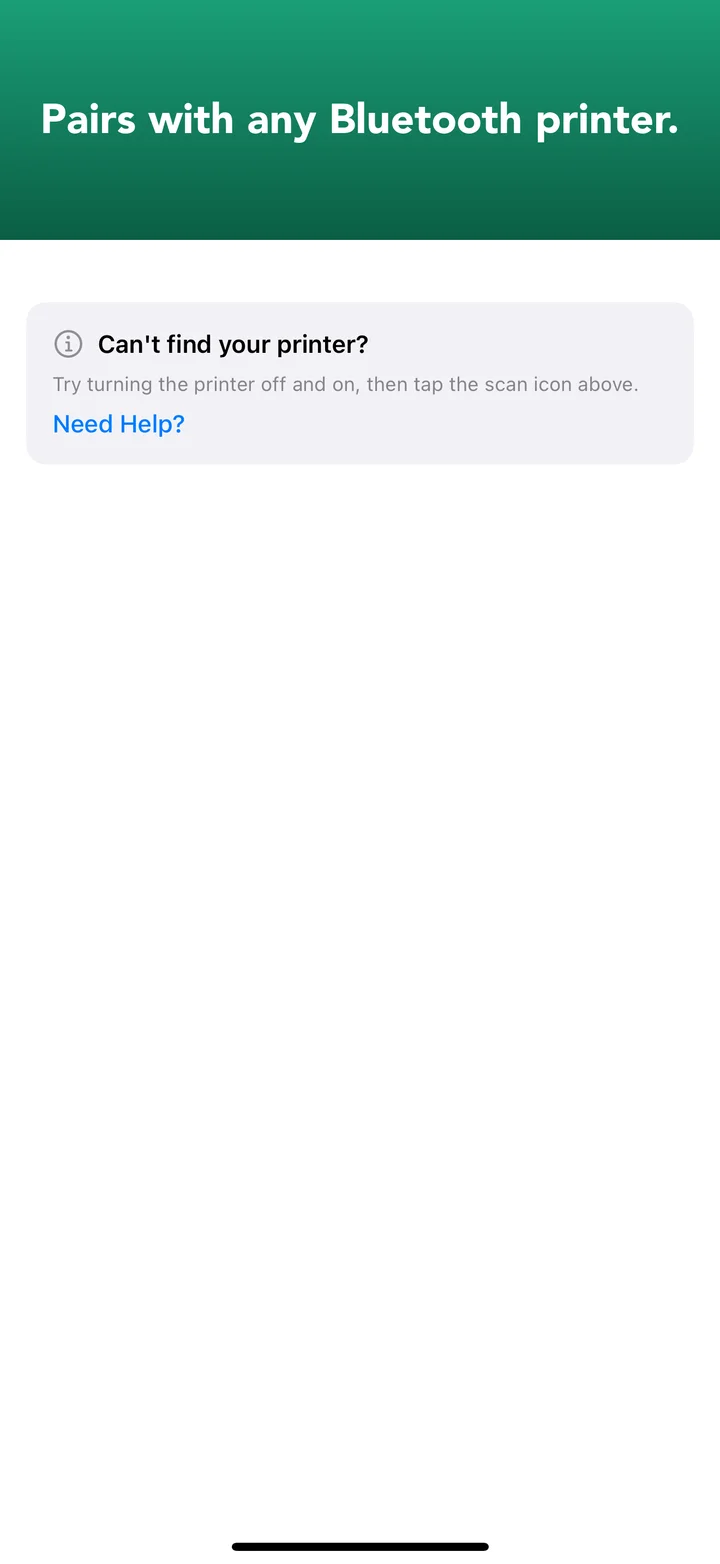
The pairing screen, BOH Wiz iOS. Compatible Zebras (ZD411, ZD420, ZD620, GK420d, and most direct-thermal models since 2015) appear in the list automatically.
Pairing persists across app restarts. The line cook never has to think about Bluetooth.
This is the screen the prep cook sees during a shift. Every item on the prep list has a green Print button next to it. Tap the button. The label prints. There is no second screen, no modal, no "are you sure," no "label design wizard." The label is already designed — item name, today's date, auto-calculated use-by date based on the shelf-life rule for that item.

Each row is one prep item. Tap the green button on the right, the label prints from the paired Zebra. About three seconds, start to finish.
The use-by date math is the part most operators don't realize they're paying for elsewhere. If your kitchen rule is "stocks 5 days, sauces 3 days, leafy greens 2 days," BOH Wiz holds those rules per item. The cook doesn't need to remember — the label just shows the right date.
Single-print is fine for a one-off. The 5 AM grind is different — thirty items to label before the line opens. The batch print screen lets a prep cook select a whole station's worth of items and print them all in one tap. The Zebra spits out a stack of labels in about a minute. The 5 AM grind takes minutes, not an hour.

Batch print. Select the items, hit Print once, walk to the line. Every label in the stack has the right item name, prep date, and use-by date.
The reason any of this matters: every printed label is logged with its use-by date. The day before a labeled item expires, BOH Wiz fires a notification to the manager's phone. Twelve items expire tomorrow. Build them into the special. Don't throw out a $40 quart of pico because the masking tape said "PCO 4/12" and nobody could remember if that was the prep date or the use-by date.

The expiring tab. Sorted by use-by date, badged red for "expires today" and amber for "expires tomorrow." This is the screen that moves the food-waste number.
Most kitchen-tech is built by people who haven't worked a Friday-night line in a decade. The prep cook at 5 AM doesn't have time to learn a label-design tool. The closing manager at 11 PM doesn't have time to cross-reference a printed schedule against the walk-in. The features that actually move the food-waste number are the ones that remove work from the kitchen, not add it.
Tap-to-print removes work. Auto-calculated dates remove work. Day-before notifications remove the need to walk the walk-in with a flashlight. Each one is a tiny improvement on its own. Stacked together, they're the difference between a 12% prep-waste week and an 8% prep-waste week.
BOH Wiz pairs over Bluetooth with most Zebra direct-thermal label printers shipped since 2015 — specifically the ZD411 (the kit we ship), ZD420, ZD620, GK420d, GX420d, GC420d, ZQ511, ZQ521, and ZD220. If you already own one of these, you can skip the printer line entirely and run BOH Wiz with your existing hardware.
For the full hardware compatibility list, see the Zebra-compatible labels page.
Order the BOH Wiz printer kit, pair it with the app, run it through prep for a month. Full refund minus return shipping if it's not a fit.
Order Now See Return Policy